

Do creators use factory calibration or custom profiles? The honest answer is that most end up doing both. Factory calibration gets you a solid starting point, but a custom profile gives you the precision that mass production simply can't match.
That distinction matters more than ever in 2026. Displays from the same model line can vary noticeably from unit to unit. The International Color Consortium (ICC) defines the profile standards that translate a monitor's native output into a more accurate image.
Knowing when to trust the factory and when to take control is the real skill.
What Factory Calibration Actually Gets You
Factory calibration is a quality-control step. The manufacturer measures a display's color output and adjusts it to match a target standard. Premium monitors ship with a printed report showing the measured Delta E values for common color spaces.
Most factory-calibrated displays target sRGB, DCI-P3, or Adobe RGB. The goal is a Delta E under 2, which most humans can't perceive as a color error. Some manufacturers push that to under 1 on their top-tier panels.
What you're paying for is consistency. A high-end monitor from a brand like EIZO or BenQ will have been calibrated on the production line. That ensures your unit matches the spec sheet, not just a lucky sample.
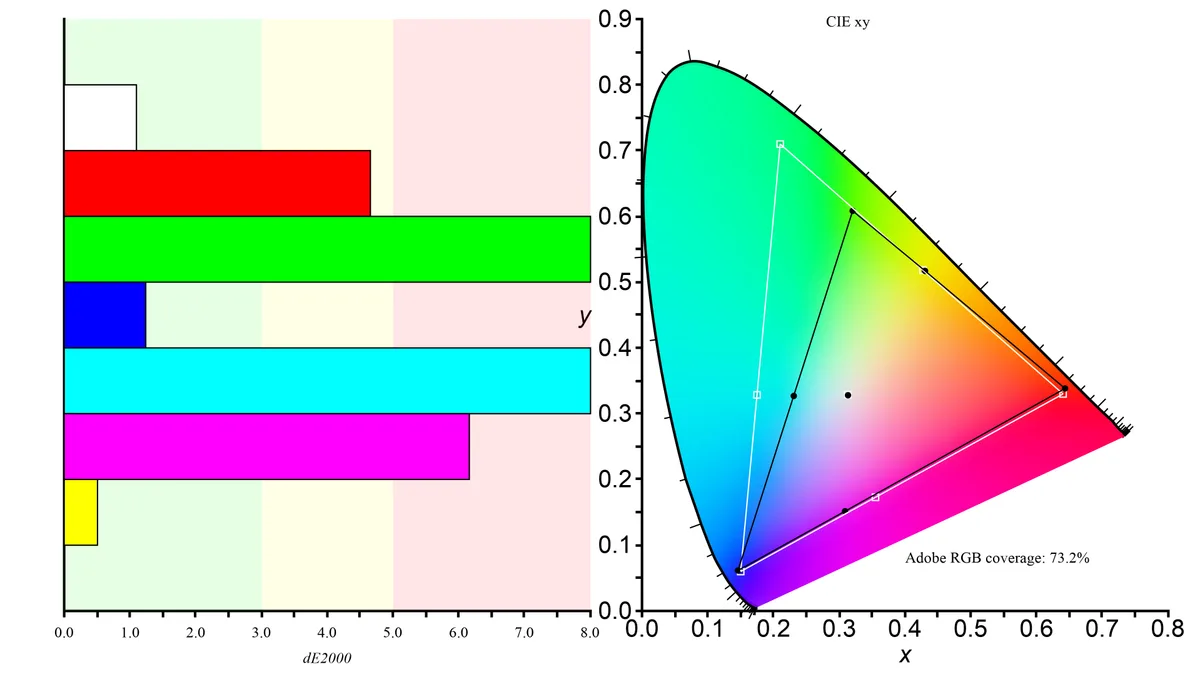
The catch is that calibration is a snapshot in time. It's measured at one brightness setting, one white point, and one gamma. Change your room lighting or brightness, and the accuracy shifts.
It also only reflects that single unit's state as it left the factory.
As of 2026, per-unit factory calibration is standard on monitors above roughly $400. Below that, you're often getting a generic profile applied to the whole model line. That's not worthless, but it's not precision either.
Why Custom Profiles Exist (And What They Fix)
A custom ICC profile is a small file that tells your operating system and color-managed apps how to translate the monitor's native output into a more accurate image. It works as a correction table, not a hardware adjustment.
The International Color Consortium created the standard back in 1993, and it's still the backbone of color management today. Every major operating system supports ICC profiles, though Windows and macOS apply them differently.
The simplest reason to use a custom profile is that every panel is slightly different. Two monitors from the same production run can look noticeably different side by side. A portable display from a budget line might be even worse, since many skip factory calibration entirely.
Software profiles are also the only option on laptops and monitors without a hardware LUT. If the display lacks a built-in 3D lookup table, software is your only path to correction. That's why custom profiles exist: they fill the gap between factory reality and your actual workflow.
Quick Answer: Should You Trust Factory Calibration or Profile Yourself?
Trust factory calibration for web and social media work. Profile yourself for print or video color grading. Factory calibration is a solid baseline.
Custom profiles fix your specific panel's quirks. Most serious creators end up doing both.
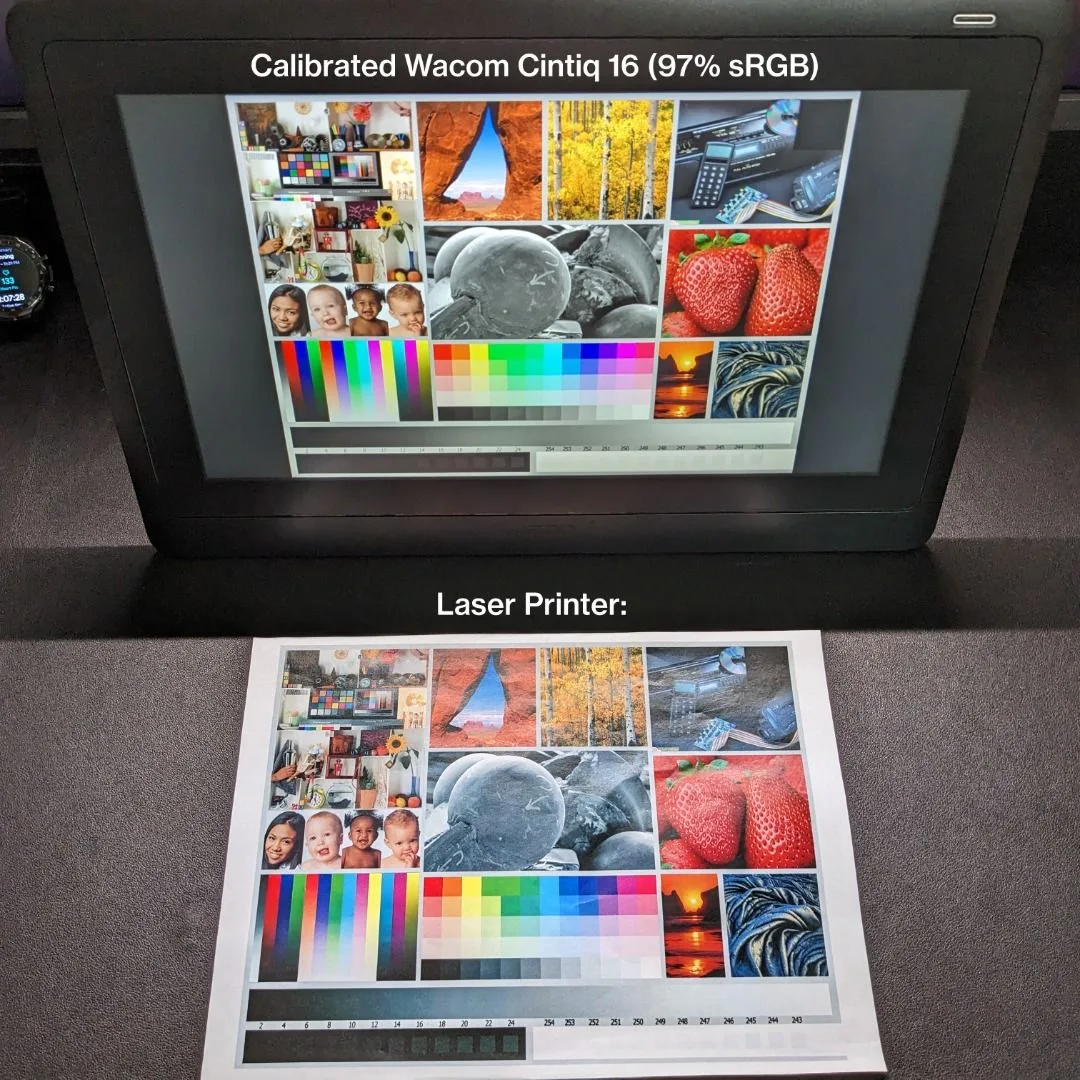
Comparing Factory Calibration vs. Custom Profiles
Factory calibration and custom profiles aren't enemies. They solve different problems. Here's how they stack up across the factors that matter most to creators.
Accuracy Claims vs. Real-World Conditions
A factory report with Delta E under 1 looks impressive on paper. In a real room, that number drifts. Ambient light, viewing angle, and even your monitor's brightness setting change the perceived accuracy.
Custom profiles are measured on your exact unit. That automatically accounts for panel variation and aging. The tradeoff is that a profile can't fix poor hardware.
It can only compensate for it.
Cost and Equipment Needed
Factory calibration is free. It's baked into the price of the monitor. Custom profiling requires a colorimeter or spectrophotometer, typically $150 to $300, plus software like DisplayCAL or Calibrite.
If you're on a tight budget, some creators use a large TV as an editing display and rely on its built-in picture modes. That's not true calibration, but it beats ignoring color entirely. The same logic applies if you're still deciding on a 43-inch TV under $300 for casual work.
Here's a quick comparison:
| Factor | Factory Calibration | Custom Profile |
|---|---|---|
| Cost | Already in monitor price | $150–$300 for a colorimeter |
| Setup time | Zero | 15–45 minutes per session |
| Accuracy | Great for a new unit | Exact for your specific panel |
| Longevity | Drifts over time | Recalibrate every 2–4 months |
| Hardware needed | None | Colorimeter or spectrophotometer |
| Coverage | sRGB, DCI-P3, Adobe RGB | Any target you want to set |
Time, Effort, and Repeatability
Factory calibration is a one-time event. You unbox the monitor, set the brightness, and trust the report. Custom profiling is a repeating task.
Every few months, you re-run the software to keep accuracy sharp.
For a solo creator, 30 minutes of calibration time every quarter is manageable. For a busy studio, that cost multiplies across every display and every workstation. That's why many studios use hardware LUT calibration, which stores the correction in the monitor itself and bypasses the operating system entirely.
How Long Factory Calibration Stays Accurate
Factory calibration is not a lifetime guarantee. It's a starting point. Most displays start to drift within a few hundred hours of use, especially if you run them bright.
Backlight uniformity changes as LEDs age. The white point, or color temperature, shifts warmer over time. A monitor calibrated to D65 at the factory might read closer to 6000K after a year.
How long you can trust it depends on the panel type. IPS panels drift slower than VA, and high-end phosphor LED backlights hold their color longer than older tubes. A typical factory calibration is reasonably accurate for the first 6 to 12 months in normal use.
After that, a custom profile becomes much more valuable. Many creators recolor every 2 to 4 months for color-critical work. If you've been using the same monitor for years, those original factory numbers are history.
When Factory Calibration Is Good Enough
If you're editing for web, social media, or anything viewed on a phone screen, factory calibration is usually fine. Most web content is consumed on sRGB displays, and your audience won't notice a Delta E of 2 versus 1.5. The difference is invisible to most viewers.
A brand-new monitor from a reputable manufacturer, one with a per-unit calibration report, gives you enough accuracy for general photography, digital illustration, and UI design. You can start editing straight out of the box. Just set the brightness to around 120 cd/m², matching your room's ambient light.
Factory calibration also holds up well for a second display used for tool panels and references. A decent portable monitor for side-by-side work doesn't need custom profiling if it's not your primary canvas. The risk of color issues is low when your main display is already accurate.
Here's a quick checklist for trusting factory calibration:
- You work exclusively for web and social media
- Your monitor came with a per-unit Delta E report
- You're not soft-proofing for print or grading video
- The monitor is less than a year old
- You keep brightness at a fixed, moderate level
When You Need Custom Profiles
The moment your work crosses into print, video, or client-critical color, factory calibration stops being enough. Print shops expect screens to match their press output. Video deliverables demand Rec.709 and DCI-P3 accuracy.
Custom profiles are the way to meet those standards.
If you've ever sent a photo to print and gotten back something darker or more saturated than expected, you've hit the limits of factory calibration. Print workflows require soft-proofing, which needs your display profiled against the specific paper and printer. The ICC profile you generate is the bridge between screen and paper.
Video color grading is another clear case. Professional colorists grade on dedicated reference monitors with hardware LUTs. Those are calibrated on set, not just at the factory.
Even on a mid-range monitor, a custom profile is worth the effort if you're charging clients for color work.
You also need a custom profile if you own a wide-gamut monitor. A display covering 95% of DCI-P3 or Adobe RGB will look oversaturated without a correct profile. Windows especially has no idea how to handle wide-gamut panels without one.
Your reds and greens will simply look wrong in non-color-managed apps.
How to Create a Custom Profile (Simple Workflow)
Creating a profile takes about 20 to 30 minutes. You'll need a colorimeter like a Calibrite ColorChecker Display or a Datacolor Spyder. Both work with their own software or with open-source DisplayCAL.
Start by letting your monitor warm up for at least 30 minutes. Then reset it to factory OSD settings. Set the brightness to your everyday viewing level, and make sure no direct light hits the screen.
Here's the step-by-step process:
- Attach the colorimeter to the center of the screen, facing the display.
- Launch the calibration software and choose your target: D65 white point, 2.2 gamma, 120 cd/m².
- Run the measurement sequence. The software displays a series of color patches.
- Save the generated ICC profile with a clear name and date.
- Install the profile in Windows Color Management or macOS ColorSync.
- Verify with the software's built-in check, aiming for a Delta E under 2.
Set a reminder to recalibrate every 2 to 4 months. Monitor phosphors and LED backlights drift, and a profile that was perfect in January won't be perfect in July. This is the real answer to "do creators use factory calibration or custom profiles" over time: they use the factory baseline, then refresh it with their own measurements.
| Step | Time Needed | Tool Required |
|---|---|---|
| Warm up the display | 30 minutes | None |
| Reset OSD settings | 2 minutes | Monitor controls |
| Run measurement sequence | 15–20 minutes | Colorimeter + software |
| Install the profile | 2 minutes | OS color settings |
Delta E, Gamma, and White Point: What the Numbers Mean
Delta E (ΔE) is a single number that represents the visible difference between two colors. A Delta E of 1 is the smallest difference the human eye can detect under ideal conditions. Values under 2 are considered excellent for professional work.
Values above 3 start to become noticeable side by side.
Gamma controls how brightness ramps from black to white. A gamma of 2.2 is the standard for sRGB and web content. A gamma of 2.4 is common for video color grading, matching what broadcast monitors and consumer TVs expect.
Switching targets changes how dark your midtones appear.
White point, or correlated color temperature, defines the tint of your whites. D65, at 6500K, is the universal standard for digital content. Your monitor's factory calibration likely targets D65, but the actual measured value can drift.
A custom profile corrects it back to spec.
Manufacturer specs commonly list these numbers on their calibration reports. Per NIST measurement guidelines, color accuracy testing relies on standardized illuminants and measured spectral data. A reputable factory report will have these figures measured, not estimated.
Common Mistakes That Ruin Color Accuracy
Skipping the warm-up is the most common error. A cold monitor measures very differently than one that's been on for an hour. Always wait at least 30 minutes before profiling.
The same applies if you're evaluating factory calibration visually.
Calibrating with ambient light hitting the screen is another classic mistake. Reflections wash out black levels and shift the measured colors. Close the blinds, dim the lights, or use a hood.
Your profile is only as good as the conditions you measured under.
Using one profile for every brightness setting causes errors. A display at 40% brightness has a different white point than one at 80%. If you change your brightness for daytime and nighttime viewing, you need a profile for each.
Some software lets you save multiple profiles and switch between them.
Not checking whether your GPU driver resets the profile is a subtle trap. Windows updates and driver clean installs can undo your ICC profile silently. After any driver update, verify the profile is still loaded in Windows Color Management. macOS usually handles this automatically, but it's worth confirming.
Creator Scenarios: Photo, Video, Print, and Web
The right answer changes with your medium. A web designer editing in sRGB on a factory-calibrated monitor is in a good spot. A wedding photographer printing through a lab needs a custom profile tuned to that lab's printer.
A video editor grading a short film needs hardware LUT calibration to guarantee consistent output.
Photographers should profile for screen brightness around 100 to 120 cd/m². Print specialists often use a darker display at 80 nits, closer to standard viewing conditions under ISO 3664. Video editors typically target 100 nits for SDR and 203 nits for HDR grading.
For multi-monitor setups, matching your secondary display to your primary is more important than hitting an absolute number. Create a profile for each display using the same colorimeter. Then adjust brightness and contrast so both show a similar white point.
Ideally, use work and gaming laptops with consistent panels to reduce this headache entirely.
Frequently Asked Questions About Calibration
How often should I calibrate my monitor?
Recalibrate every 2 to 4 months for color-critical work. If you edit photos or grade video daily, aim for the shorter end. For general web design and office use, twice a year is plenty.
Panel drift slows down after the first few hundred hours.
Is factory calibration enough for photo editing?
Yes, for web and social media. A factory-calibrated display with a Delta E under 2 is accurate enough for most online work. If you print professionally or deliver files to clients, build a custom profile.
Print workflows demand a level of consistency factory reports can't guarantee.
Can I create an ICC profile without a colorimeter?
No. A colorimeter measures the actual colors your screen produces. Without that measurement, a software-only profile is just a guess.
Some utilities claim to adjust gamma visually, but they can't fix white point or color balance. The $150 to $300 for a colorimeter is worth the precision.
What is the difference between hardware LUT and software calibration?
Hardware LUT calibration stores corrections inside the monitor itself. Software calibration uses an ICC profile on your operating system. Hardware LUT is more reliable because it works regardless of the app being used.
Software profiles get ignored by non-color-managed programs.
My Verdict: Which One Should You Use?
Start with factory calibration and build from there. If you're a web designer, social media creator, or casual photographer, the factory report on a quality monitor is enough. Spend your money on a solid display with a per-unit calibration certificate, not on accessories you may not need yet.
If you print, grade video, or hand off files to clients, invest in a colorimeter. A custom profile turns your editing setup into a predictable tool. The consistency across your screen, your printer, and your clients' screens is worth the small investment and the half hour every few months.
The honest answer to "do creators use factory calibration or custom profiles" is both. Factory calibration sets the baseline. Custom profiles maintain that precision as your panel ages and your standards rise.
Skip one and you're working with a blind spot.
