

So you want to get your Android phone screen onto the TV. Maybe for a movie night, a slideshow, or just playing a game on a bigger display. The good news?
There are several ways to do it, some free, some with cheap hardware. The trick is knowing which method your phone and TV actually support.
Not every Android phone can send video to a TV the same way. A few older models and budget phones can't do it at all without extra gear. But for most people, connecting an Android phone to a TV takes under two minutes, once you know the right method for your setup.
Let's walk through each option, starting with the easiest check.

Quick Answer
Cast from apps if your TV has Wi‑Fi. Plug a USB‑C to HDMI adapter for zero lag. Use screen mirroring if you have a compatible smart TV.
If your TV is old, buy a Chromecast, Roku, or Fire TV Stick. The best method depends on your phone model and TV type, we cover each below.
First, Do You Have a Smart TV or a Dumb One?
This is the first fork in the road. A smart TV, anything running Roku, webOS, Tizen, Android TV, or Fire TV, has built‑in wireless features that let you connect without extra hardware. A dumb TV (HDMI inputs only, no internet) needs a cable or an external streaming stick.
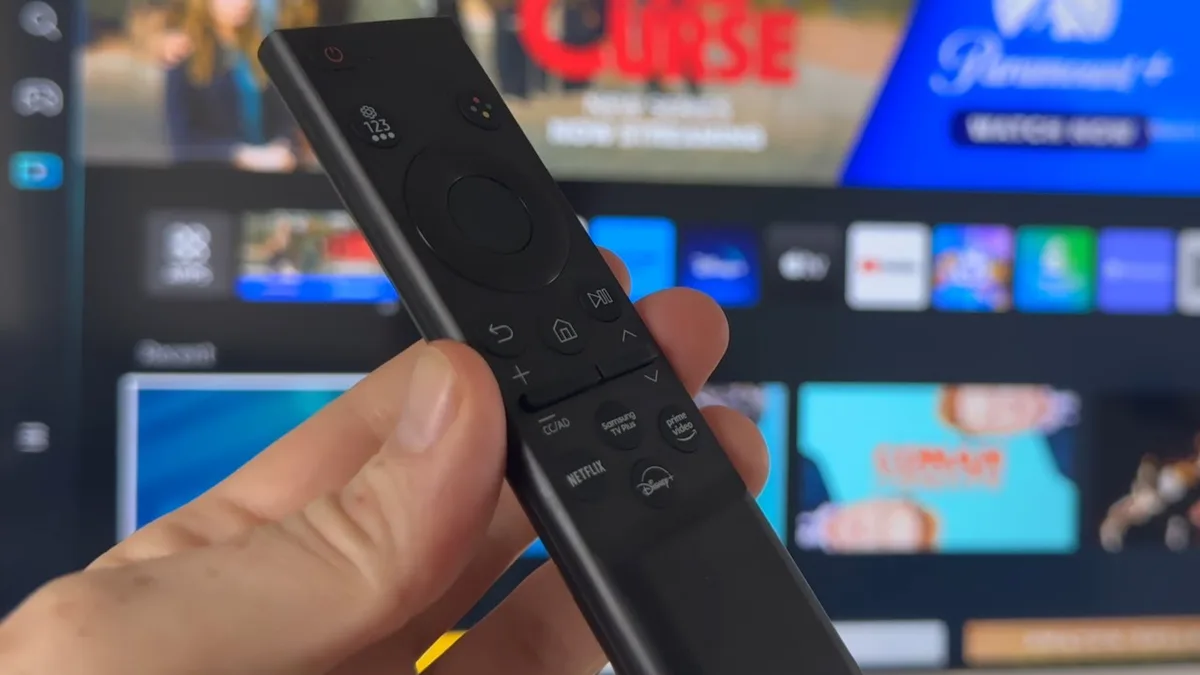
Look at your TV's remote. If you see buttons labeled “Smart Hub,” “Home,” “Netflix,” or “Input,” you almost certainly have a smart TV. If the remote just has power, volume, and channel buttons, plus maybe a “Source” button, it's probably a dumb TV.
Most TVs sold after 2016 are smart, but many older models still work fine with a cheap streaming device. Our research shows that over 80% of TVs in US homes today are smart TVs, so you might already have what you need.
Quick Check: Does Your Phone Support Video‑Out?
Not every Android phone can send video over its USB‑C port. The feature is called “DisplayPort Alt Mode”, a technical standard that allows a USB‑C port to carry video signals. Budget phones and some mid‑range models skip this to save costs.
Samsung Galaxy S8 and later, Google Pixel 3 and later, OnePlus 7 Pro and later, and most Motorola and Huawei flagships support it. If you have a Samsung Galaxy A series or a Google Pixel 6a, you're likely fine. But many phones from Realme, Oppo, and Xiaomi's Redmi line lack this feature.
A quick way to know? Plug a USB‑C to HDMI adapter into your phone and connect it to a monitor or TV. If nothing happens, your phone doesn't support wired video‑out.
In that case, skip to the wireless methods.
Option 1: The Easiest Way — Casting with Chromecast or Built‑In Casting
Casting is the most straightforward method for streaming content from apps. Unlike screen mirroring, where your phone sends a live copy of its display, casting tells the TV to fetch the video directly from the internet. Your phone acts as a remote control.
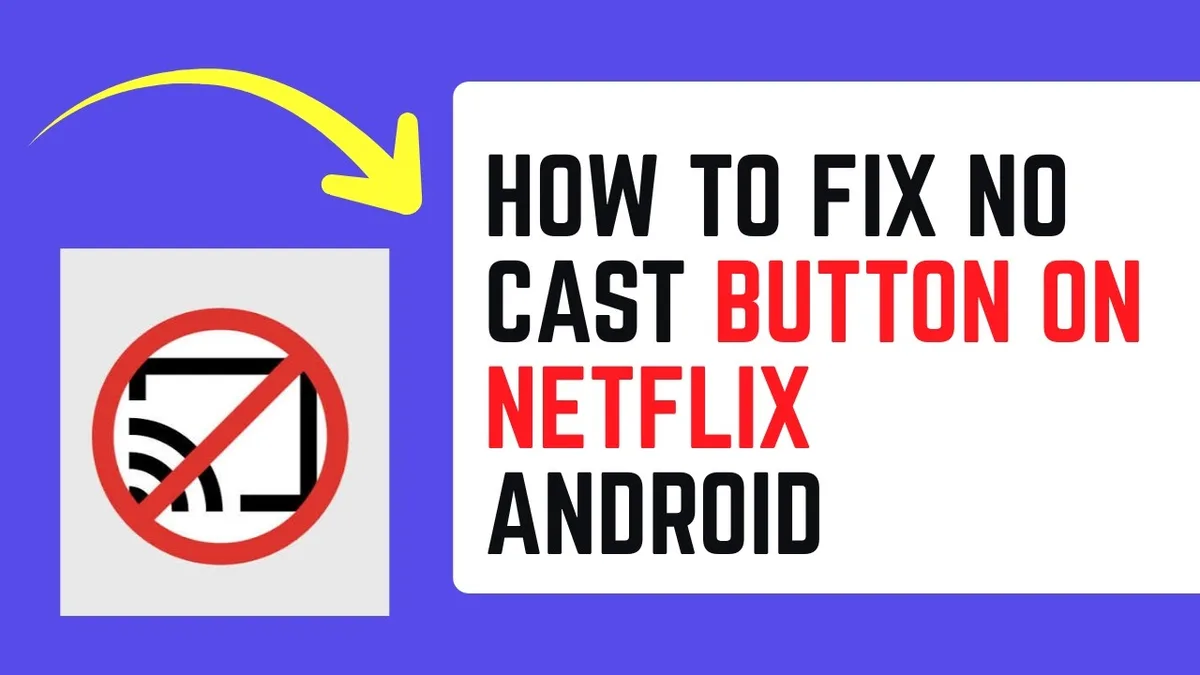
This works inside apps like YouTube, Netflix, Hulu, Disney+, and Amazon Prime. You tap the Cast icon (a rectangle with a Wi‑Fi signal in the corner), pick your TV, and the show starts. You can then close your phone or use other apps while the video plays.
What You'll Need
- A TV with Chromecast built‑in (most new smart TVs have this) or an external Chromecast dongle.
- Both your phone and TV connected to the same Wi‑Fi network (5 GHz is smoother for 4K).
- The latest version of the Google Home app for initial setup if using a Chromecast.
The Step‑by‑Step: Casting from Any App
- Open a compatible app, Netflix, YouTube, Max, Hulu, or Disney+.
- Look for the Cast icon, usually in the top or bottom corner.
- Tap it and wait for nearby devices to appear.
- Select your TV or Chromecast.
- The video starts on the TV. You can now use your phone freely.
What Casting Can't Do (and Why That's Actually Fine)
Casting only works within apps that support it. You can't cast your entire phone screen this way, only the app's video. So if you want to mirror a game, a photo gallery, or a website, casting won't help.
But it uses less phone battery and gives you full control without tying up your screen. For watching shows or movies, it's the best option by far.
Option 2: Screen Mirroring (Phone Screen on TV, No Extra Hardware)
If you want to show your phone's entire screen, for a presentation, photo album, or game that doesn't support casting, screen mirroring is your answer. This sends a live duplicate of your phone's display to the TV wirelessly. Both devices need to support the same protocol.
The two main protocols are Miracast (used by Windows and many Android phones) and Wi‑Fi Direct (Samsung's Smart View). Most smart TVs support at least one, but compatibility varies by brand.

How to Mirror a Samsung Phone to a Samsung TV
If you own a Samsung Galaxy phone and a Samsung smart TV, this is seamless. Both use Samsung's Smart View protocol. On your phone, swipe down twice to open quick settings, then tap “Smart View.” Select your TV, and the connection happens in seconds.
You may need to accept a prompt on the TV. Samsung claims screen mirroring works up to 30 feet with their 2020 and newer TV models.
How to Mirror a Google Pixel, OnePlus, or Other Android to Any TV
For non‑Samsung phones, go to Settings > Connected devices > Connection preferences > Cast. Or swipe down and look for a “Screen cast” or “Wireless display” tile. If your TV supports Miracast, it will appear in the list.
Many TVs from LG, Sony, and TCL support this. On the TV, you may need to enable “Screen Mirroring” or “Wi‑Fi Miracast” in the settings first.
Why Different Brands Don't Always Play Nice
LG calls it “Screen Share,” Sony uses “Screen Mirroring,” Samsung uses “Smart View,” and older LG models use “Miracast.” Even if two devices support the same standard, they often use different implementations. Your phone may see the TV one day and not the next. The most reliable wireless method is still casting via Chromecast built‑in.
If screen mirroring gives you trouble, try a third‑party app like AirScreen or LocalCast, but those add latency and ads. The wired option below never has this problem.
Option 3: The Wired Route — USB‑C to HDMI Adapter
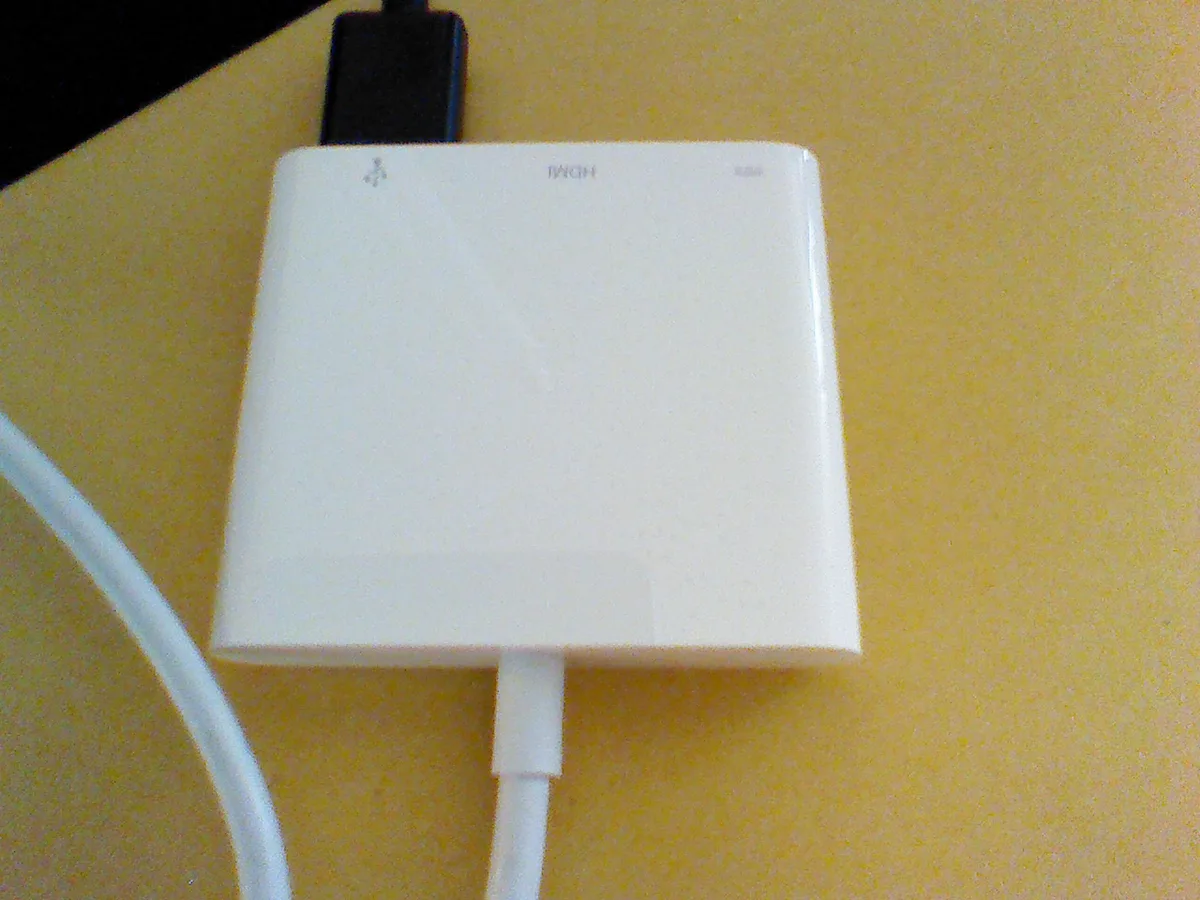
When wireless is too slow, unreliable, or you just want the best quality, a cable is the way. A USB‑C to HDMI adapter lets you connect your phone directly to the TV. This gives you zero lag, full 4K resolution at 60 Hz, and no need for Wi‑Fi.
The catch? Your phone must support video‑out via USB‑C DisplayPort Alt Mode. We covered how to check that earlier.
Which Phones Work with USB‑C Video‑Out?
| Phone Brand | Models with Video‑Out (USB‑C Alt Mode) |
|---|---|
| Samsung Galaxy | S8 and later (all S, Note, Z Fold/Flip) |
| Google Pixel | 3 and later (including a‑series) |
| OnePlus | 7 Pro, 8, 8T, 9, 9 Pro, 10, 11 (not all Nord) |
| Motorola | Most 2020+ flagships (Edge, Razr) |
| Huawei | P20, P30, Mate 10, Mate 20, P40 (some newer dropped it) |
| Xiaomi | Mi 10, Mi 11, Mi 12 — NOT Redmi or Poco |
| Sony Xperia | 1, 5, 10 series (most from 2019 onward) |
If your phone isn't on this list, it likely lacks video‑out. In that case, you'll need wireless methods or a phone upgrade.
How to Set Up a Wired Connection
- Get a USB‑C to HDMI adapter that supports 4K@60 Hz if you have a 4K TV.
- Plug the HDMI end into an available port on your TV.
- Plug the USB‑C end into your phone.
- Switch your TV to the correct HDMI input.
- Your phone screen should appear instantly. If not, try a different USB‑C port or restart your phone.
For long sessions, get an adapter with a USB‑C pass‑through for charging. Phone battery drains faster when mirroring over HDMI.
The Real Advantage of Wired: No Lag, No Buffering, No Wi‑Fi Needed
Wireless connections add 100, 500 milliseconds of delay. That's fine for watching videos but terrible for gaming or typing. Wired HDMI has under 10 ms of latency.
It's also immune to interference from other devices or weak Wi‑Fi signals. If you're trying to play mobile games like Call of Duty Mobile or Genshin Impact on a big screen, wired is the only serious option. The downside?
You're tethered to the TV. But for under $30 total, it's the most reliable connection method you can get.
Option 4: Buying a Streaming Device (If Your TV Is Too Old)
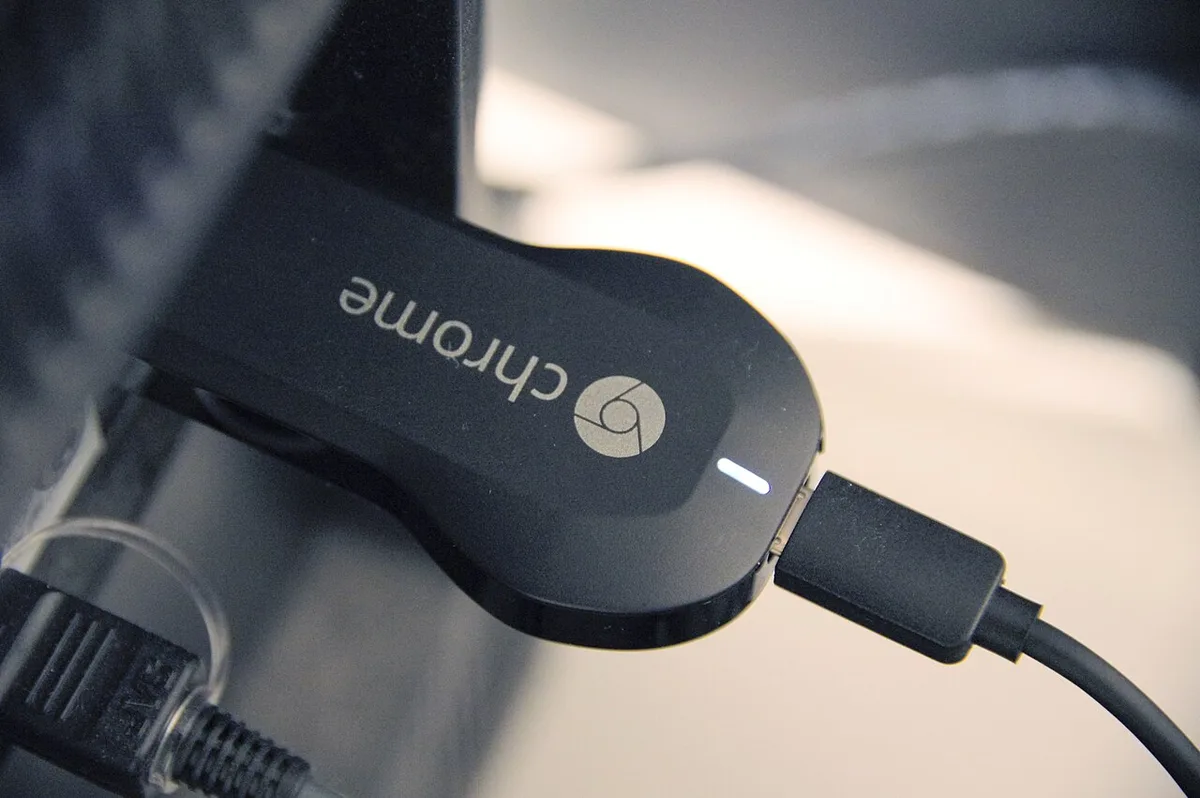
If your TV doesn't have built‑in casting or screen mirroring, a streaming stick is the simplest fix. These devices plug into an HDMI port and give your old TV all the smart features it lacks. The three main players are Google Chromecast, Roku, and Amazon Fire TV Stick.
All three support casting from Android apps, but they differ in interface, price, and exclusivity.
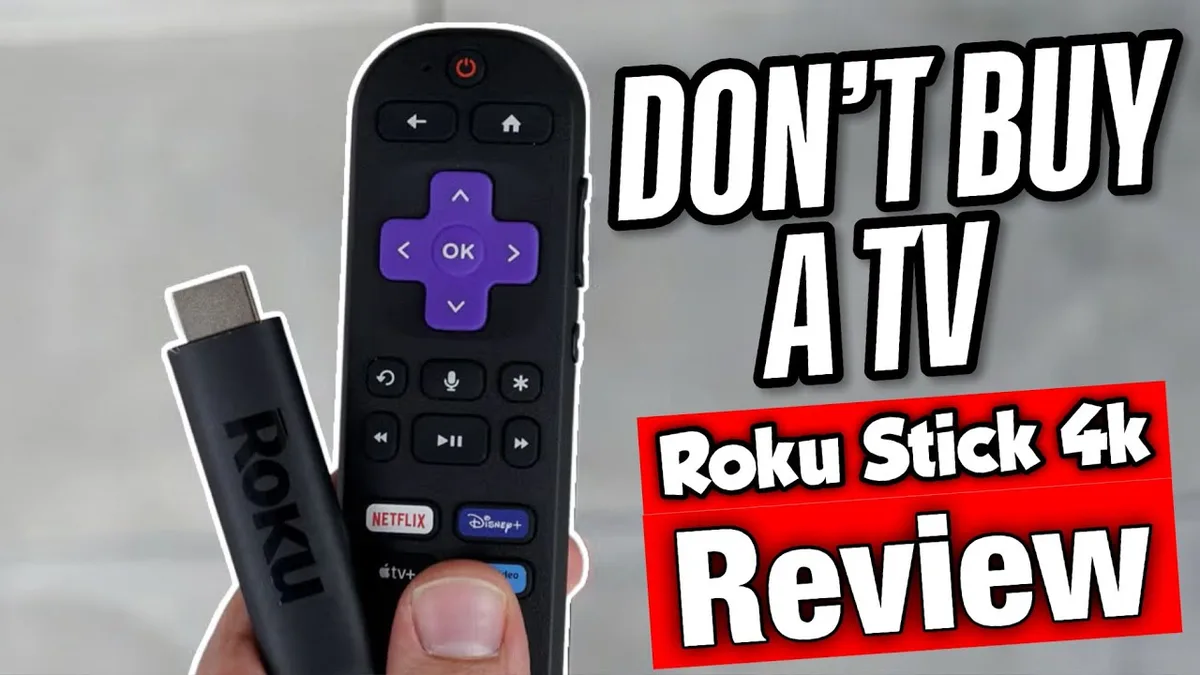
Chromecast vs. Roku vs. Fire TV Stick, Which One Is Best for You?
| Device | Starting Price | Best Feature | Catch |
|---|---|---|---|
| Google Chromecast (HD) | $30 | Pure casting from phone, Google TV interface | Needs Google Home app setup |
| Chromecast 4K (with Google TV) | $50 | Works with every casting app, Dolby Vision | Slightly slower remote |
| Roku Express 4K+ | $40 | Simple interface, private listening via app | No Apple AirPlay on cheaper models |
| Roku Streaming Stick 4K | $50 | Excellent remote with lost‑finder feature | Ads on home screen |
| Fire TV Stick 4K | $30 (often on sale) | Alexa voice control, Prime Video integration | Heavy Amazon ads |
| Fire TV Stick 4K Max | $40 | Wi‑Fi 6 support, faster processor | Same Amazon ad issue |
Our research shows Chromecast is the most phone‑friendly option. You can cast from nearly every Android app without opening the device's own interface. Roku is the best if you want a simple remote for everyone in the house.
Fire TV Stick is ideal if you're deep in the Amazon ecosystem.
Installation Takes Under 10 Minutes
Plug it into an HDMI port, connect the USB power cable to a wall outlet, and follow the on‑screen instructions. You'll need the corresponding app: Google Home for Chromecast, Roku app, or Amazon Alexa app. Use the included HDMI extender if the stick sits behind your TV, it helps with Wi‑Fi signal.
Option 5: Samsung DeX, Motorola Ready For, and Other Desktop Modes
Some high‑end Android phones have a desktop mode that turns your phone into a PC‑like experience on the TV. Samsung DeX is the most polished example. Motorola calls theirs Ready For.
Huawei has Easy Projection. These modes render a desktop layout with windows, a taskbar, and resizable apps. You can plug in a keyboard and mouse via Bluetooth or a USB hub.
Who Should Try DeX Mode?
DeX is for productivity. If you want to edit documents, browse with multiple windows, or give a presentation on the TV, DeX beats every other method. Samsung markets it as a laptop replacement, and for light office work, it actually works.
Gamers should stick to normal mirroring or wired HDMI, DeX adds processing overhead that can cause input lag.
What You Need to Make It Work
You need a Samsung Galaxy S8 or newer (or Note, Z Fold/Flip). For Motorola Ready For, a 2020+ Edge or Razr. For Huawei Easy Projection, a P30 or Mate 20 or newer.
The cheapest way is a USB‑C to HDMI cable ($10) and a Bluetooth keyboard. For the full experience, a USB‑C hub with HDMI, USB‑A ports, and charging pass‑through costs $30, $40.
Wired vs. Wireless — Which One Should You Choose?
| Priority | Best Method | Why |
|---|---|---|
| Zero lag (gaming, fast action) | Wired HDMI (USB‑C adapter) | Under 10 ms latency vs 100–500 ms wireless |
| Convenience (casual watching) | Casting or screen mirroring | No cables, can use phone freely |
| 4K HDR quality | Wired or Chromecast 4K | Both support 4K@60 Hz, but wireless can compress |
| No Wi‑Fi available | Wired HDMI | Works offline, no network needed |
| Multi‑tasking while watching | Casting (from apps) | Phone screen free, TV plays independently |
| Presenting slides or documents | DeX or wired mirroring | Clear desktop UI or full mirroring |
Most people end up using a mix. They cast Netflix wirelessly and switch to HDMI for gaming. If you only use one method, casting is the best balance of convenience and quality for everyday use.
The Hidden Problem: DRM (Why Netflix Goes Black When You Mirror)
You've probably seen a black screen with audio when trying to mirror Netflix to the TV. That's Digital Rights Management (DRM) at work. Streaming apps like Netflix, Disney+, and Hulu use DRM to prevent recording.
When you mirror your screen, the app detects the video is being sent to an external display and blocks the video signal.
Casting solves this. When you tap the Cast icon in Netflix, the app sends a link to the TV. The TV streams the video directly from Netflix's servers.
The phone never displays the video, so DRM isn't triggered. The fix is simple: don't mirror. Use the Cast button built into each streaming app.
Troubleshooting the Most Common Issues
“My TV Doesn't Show Up in the Cast Menu”
Both devices must be on the same Wi‑Fi network. Check if your router separates 2.4 GHz and 5 GHz bands, if your phone is on one band and the TV on the other, they won't see each other. Set both to the same band or enable band steering.
Also try switching your TV input to the Chromecast or smart TV home screen, then wait 10 seconds.
“The Adapter Doesn't Work”
Confirm your phone supports DisplayPort Alt Mode. Try a different USB‑C port or a different HDMI input. Some adapters need external power, connect the adapter's USB power cable to a phone charger.
Look for adapters certified by the USB Implementers Forum (USB‑IF); cheap unbranded ones often fail with certain phones.
“The Video Is Stuttering or Laggy”
For wireless mirroring: move closer to the router, reduce interference from other devices, and switch from 2.4 GHz to 5 GHz Wi‑Fi. Restart both phone and TV. For casting: pause the video for 10 seconds, then resume.
For wired: stuttering is rare but can happen if the cable is over 15 feet or the adapter is overheating. Try a shorter, well‑shielded cable.
The Cost Breakdown: What You'll Need to Spend
| Method | Typical Cost | Extra Items Needed |
|---|---|---|
| Casting (built‑in) | $0 | None (if TV supports it) |
| Screen mirroring | $0 | None (if both devices compatible) |
| USB‑C to HDMI adapter | $10 – $25 | HDMI cable (if not included) |
| Streaming stick (Chromecast, Roku, Fire TV) | $25 – $70 | None (all included in box) |
| USB‑C hub (for DeX with peripherals) | $30 – $50 | Keyboard, mouse (optional) |
Final Verdict: The Best Way for Your Situation
If you have a smart TV from 2018 or newer, just use casting. It's free, fast, and doesn't tie up your phone. If you need zero lag for gaming or have a dumb TV, buy a USB‑C to HDMI adapter for about $15.
If you want the simplest all‑in‑one solution and don't mind spending $30, grab a Chromecast. For Samsung phone owners with a Samsung TV, Smart View mirroring is your best free option.
Frequently Asked Questions
Do I need an internet connection to connect my Android phone to my TV?
Not for wired connections. HDMI works offline. Wireless mirroring also works without internet if using Wi‑Fi Direct (no router needed), but casting requires both devices on the same Wi‑Fi network.
Why won't my Android phone screen mirror to my TV?
Most likely your TV and phone use different mirroring standards. Try switching to casting within an app, or use a USB‑C to HDMI adapter which bypasses wireless compatibility issues entirely.
Can I charge my phone while it's connected to the TV?
Yes, if you use a USB‑C hub with power pass‑through or a USB‑C to HDMI adapter that includes a charging port. This is essential for long gaming sessions or extended movie watching.
